

Papr Work, Redesigned Around the Way You Work
The Papr Work redesign: a slimmer interface, Focus with three priorities in view, Replay to watch your agent's progress, and apps you can share.
Corey Badcock
A founder is preparing for a customer call. The latest notes are in a document, the relationship history is in a CRM, and the follow-up lives somewhere between email and a spreadsheet. An AI chat might help write the agenda. Someone still has to gather the context, remember the priorities, and move the work forward.
Papr Work is built for people doing this work. It is a local-first platform for personalizing small software that runs your work—built for founders, marketers, account managers, and independent professionals who already use AI but still find themselves coordinating work across their tools. Local-first is a privacy choice: you own your data and decide which tools Papr Work connects to and what you share with others. Describe a recurring workflow and Papr Work turns it into an app, a focused tool connected to the systems you use. Memory carries relevant business context forward. Jobs run work on a schedule, even after the conversation ends.
Since we opened our beta in August, we’ve been listening to your feedback. Four recent changes address questions you face while using a workspace like this: Where should I put my attention? Is the work I handed off still running? How do I bring someone else in?
We started with the interface you see every time you open Papr Work.
A New Interface for a More Focused Workday
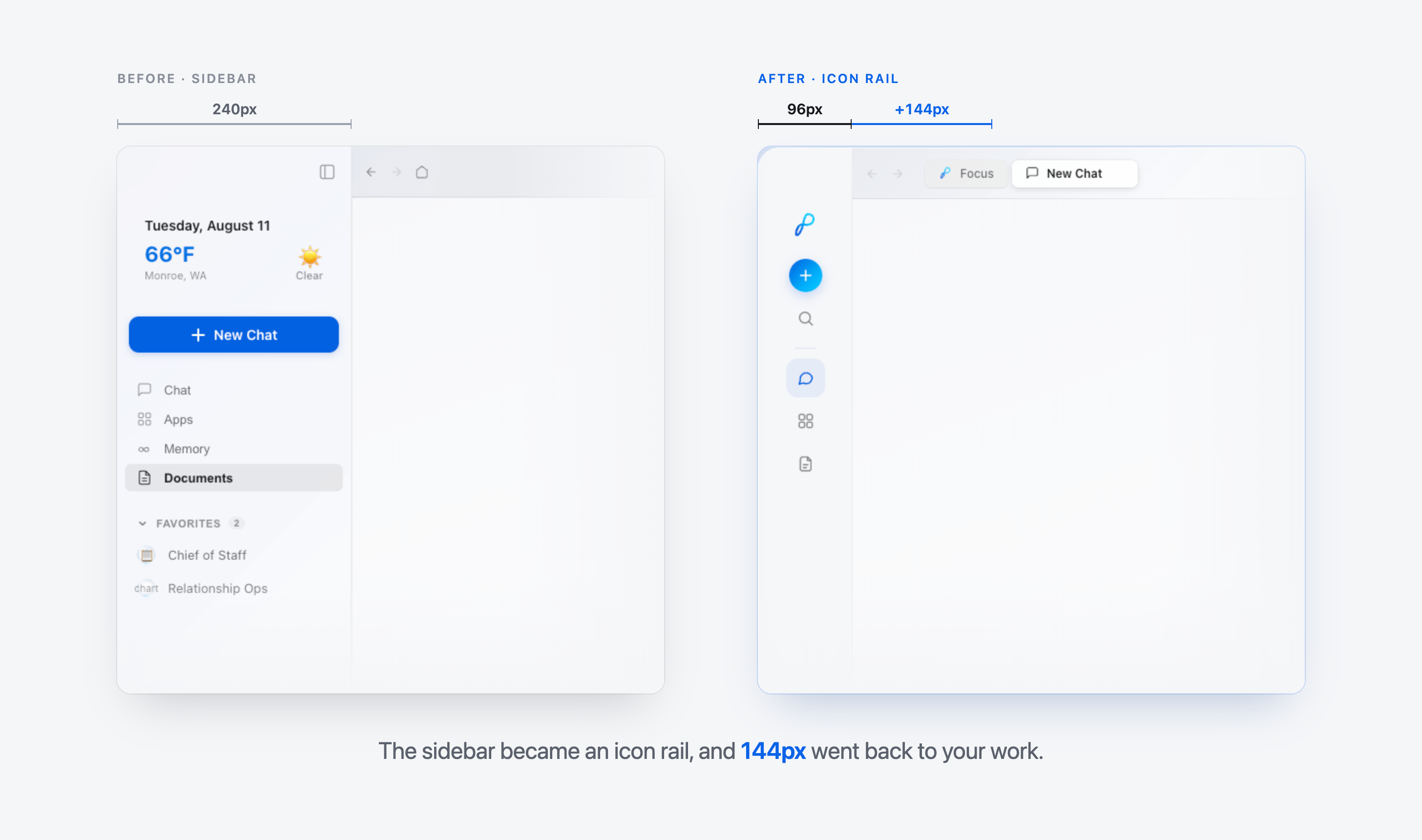
Before this release, the sidebar occupied 240px of the window. Our navigation data showed roughly 70% of clicks went to chats, while apps, documents, settings, and memory divided the rest. We were giving a wide, permanent panel to a narrow set of frequent actions. The guiding idea became: the rail should be the quietest thing on screen until your agent has something worth saying. It gave us a test for what stayed visible and what waited one hover away.
We replaced the sidebar with an icon rail. The first version was 80px wide. Then larger macOS 26 window controls crowded its edge, so we widened it to 96px. The extra space cleared the controls while giving 144px back to your work compared with the old sidebar. Chats, apps, and documents open peeks with pinned favorites and recent items when you reach for them. Memory has a dedicated icon. With a rail this slim, the hide-sidebar button no longer earned its place, so we removed it.
One detail lasted a day. We shipped a ring in your organization’s color around your avatar to answer a useful question: which workspace am I in? Then we replaced it with the organization’s logo on a small white tile. A color asks you to remember which organization it represents. A logo gives you something to recognize. We liked the ring, but the logo did the job better. If an organization has no uploaded logo, Papr Work falls back to its website icon or a monogram.
The rail also became the home for two new experiences. Hover over the Papr logo and you will find Focus, including your three current priorities. Watch the mark while a chat runs and you will see Replay. The frame of the workspace now helps you decide where to go and shows when work is moving.
Focus: Give Your Attention a Starting Point
You open Papr Work on Monday with a product launch, three customer follow-ups, and an overdue internal task. A list shows all of them. It does not help you decide which goals deserve the week.
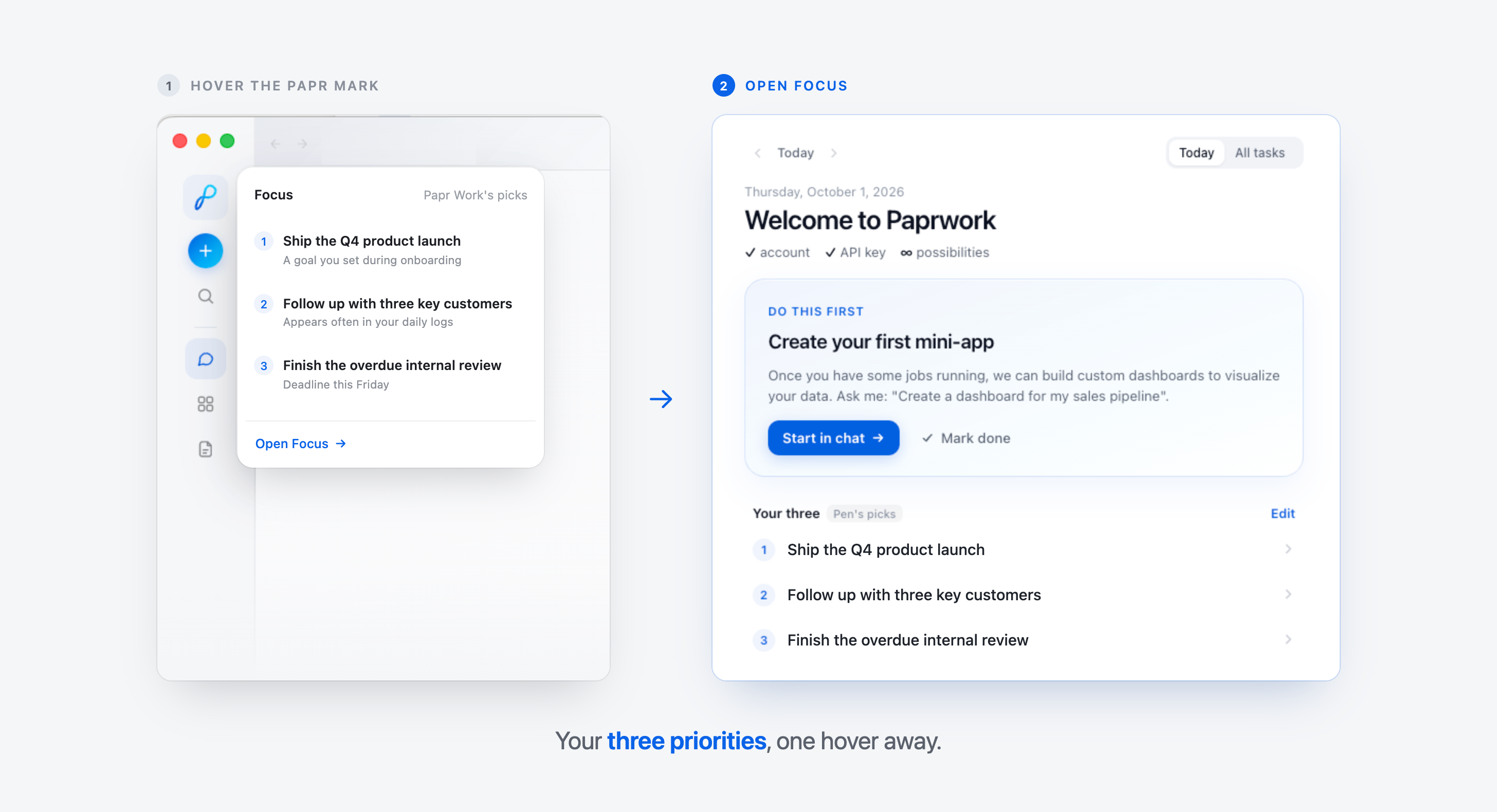
Focus offers a second opinion. It surfaces your top 3 priorities, the goals most relevant to your work right now. Hover over the Papr mark to see each pick and a short reason, such as a goal you set during onboarding or one appearing often in your daily logs. A weekly bar shows how much of your Papr Work chat time went toward those goals.
The picks come from evidence across the workspace: goals you have named and ranked, recent chats, open tasks and deadlines, apps associated with a goal, daily logs, and onboarding answers. We built rules to keep the picture honest. One chat contributes time to one goal. A goal and its own sub-goal do not occupy two of the three slots. The same evidence produces the same ranking.
Focus suggests, you decide. Suggested picks stay marked until you confirm them. Keep, edit, or swap any goal, choose from ranked alternatives, or write your own. Once you settle on your three, Papr Work leaves them in place until a goal is finished or removed. Open a goal to see its tasks, next milestone, and this week’s work on it.
The aim is a useful moment of reflection: Here is what you said matters. Here is where your work has gone. Do those still belong together?
The Papr hover card used to show the weather. We gave its space to your three priorities instead. It was a small change with a larger purpose: when you check in with your agent, the first thing you see should help you decide where to put your attention.
Replay: Show the Work in Motion
When you ask an AI system to do something, the waiting is different from waiting for a page to load. You have handed over a piece of work. You want to know whether it is still underway and when it is complete, without staying glued to the screen.
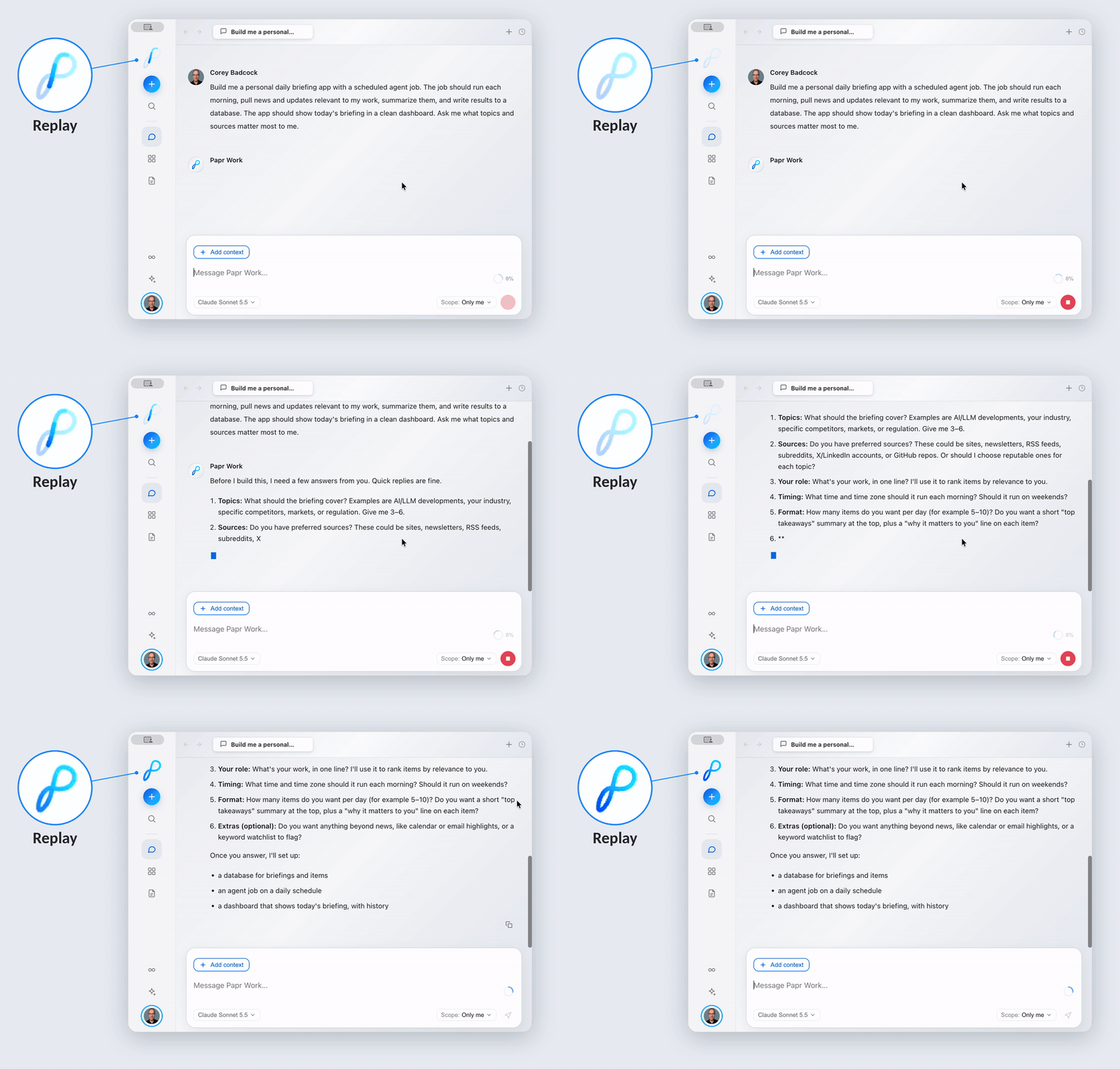
Replay turns the Papr mark into a progress signal. We drew on the idea of a memory replaying along a path: while Papr Work works, a point of light travels around the agent’s own outline. The rest of the mark recedes so the movement reads at a glance. When the work lands, the stroke completes, glows once, and rests. The mark itself carries the signal, without adding a separate spinner.
The signal follows you through the workspace. Hover over the mark to see how many chats are in progress. Active chats carry the same mark in the list. In dark mode, the light shifts from ink to white. With reduced motion enabled, it pulses in place.
This is a small detail with a practical job. A single, recognizable signal helps you follow work across the product without opening every chat to check on it.
The motion took precise work. In Chrome, the light jumped until we expressed its path offsets as lengths with a pixel unit. One missing unit changed how the movement felt. After shipping, we found a more consequential problem: the light sometimes went dark while the agent was still using a tool. The status count had followed streaming text instead of the full working turn. We fixed the count so Replay stays lit for the whole job. A progress signal only earns trust when it tells the truth.
Sharing: Let a Useful App Travel
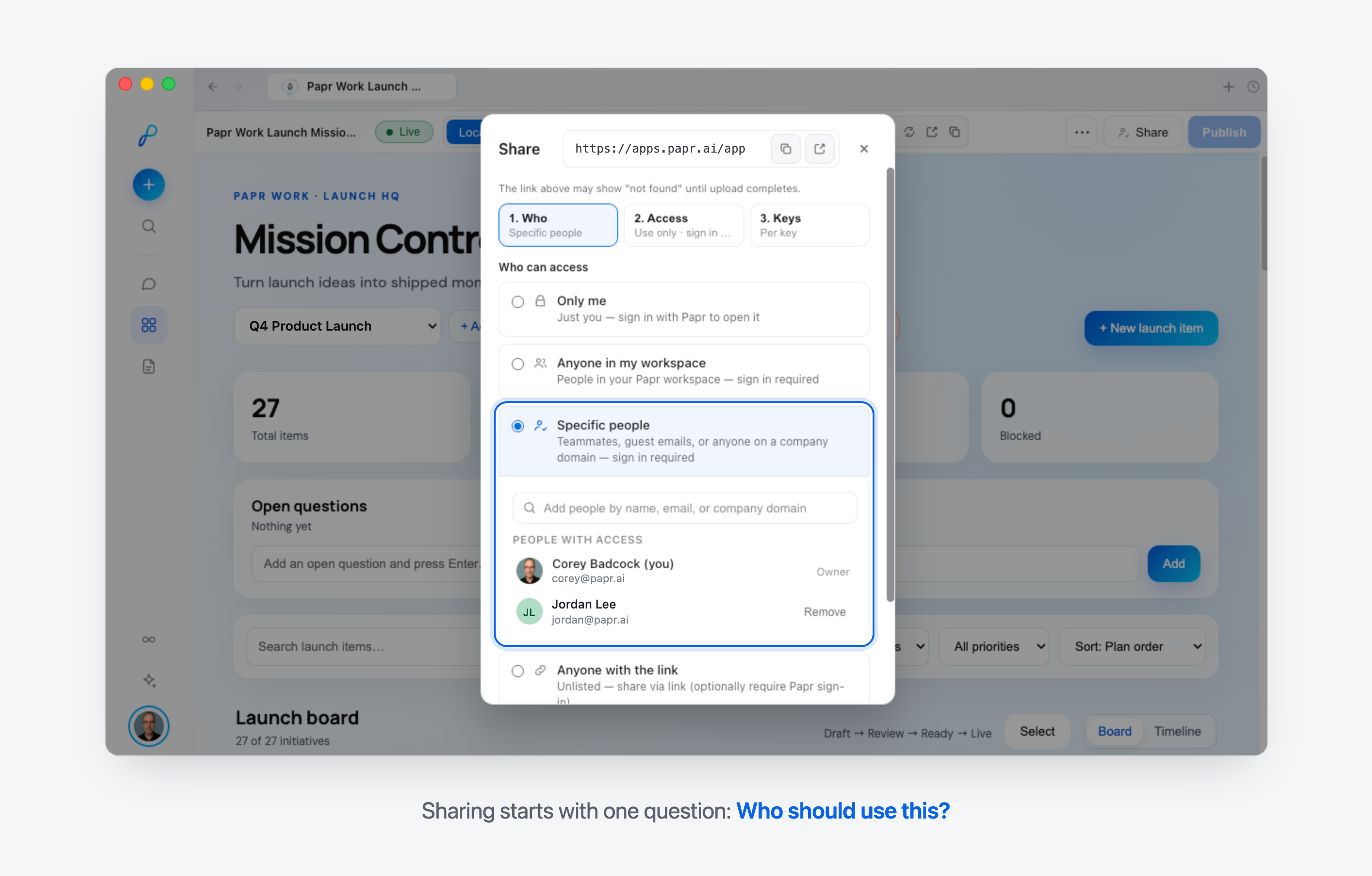
At Papr, we use an internal app called Mission Control to track launch activity across the team. The founder wanted to sort tasks by priority alongside date and status, so he added the option. He also changed the background color to make the app feel more like Papr. The tool evolved because a teammate using it saw a better way to work—an example of how sharing something with specific people can invite useful feedback and turn individual ideas into improvements for the whole team.
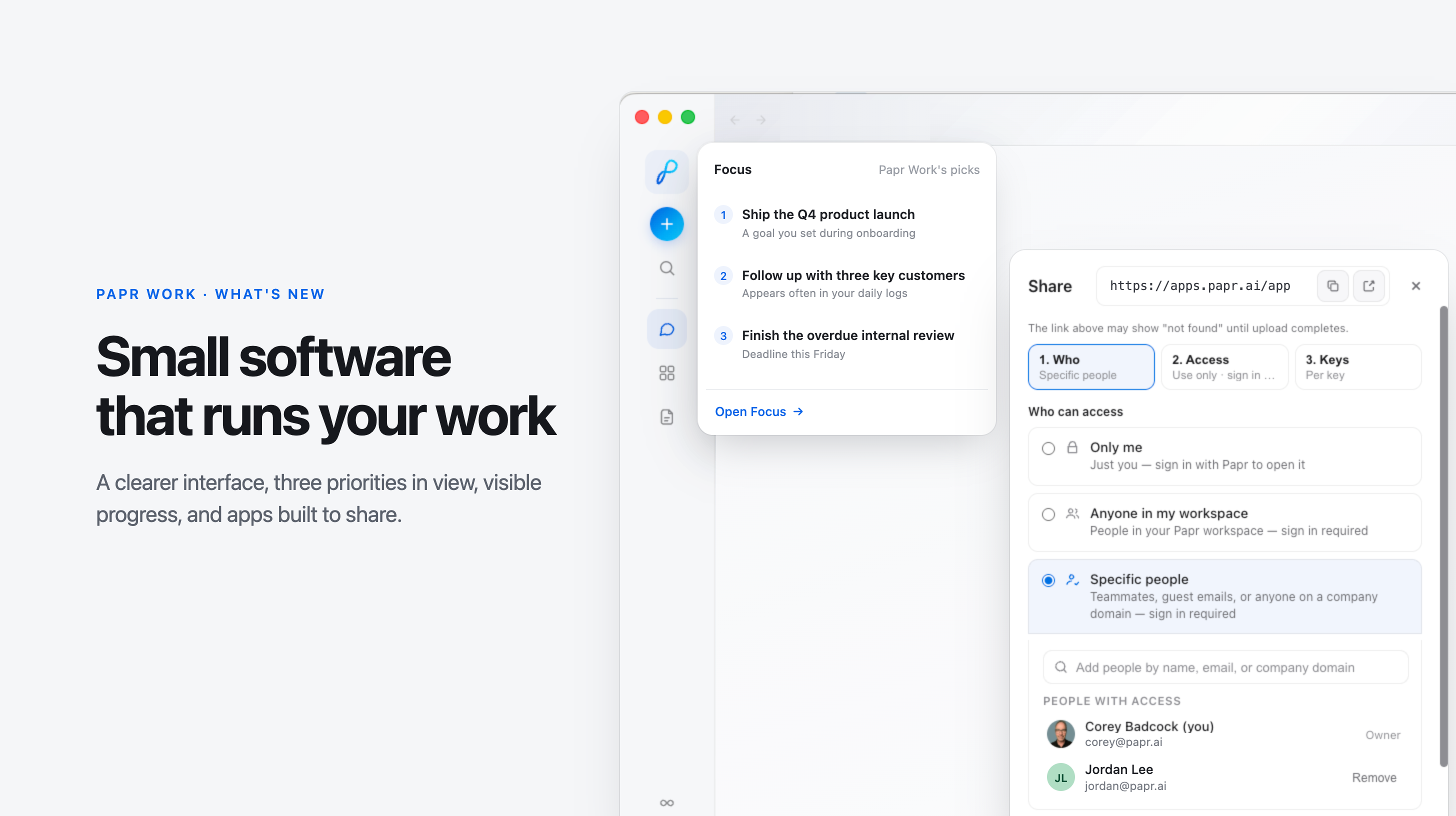
You now share an app with specific people. Type an @mention, choose the teammates who need access, and save the list. The option appears in the share bar and when publishing an app to the web.
We also added collaboration on shared apps, installation from the cloud catalog, contributions to community apps, and restoration of archived apps. Together, these changes help a useful app grow beyond its original builder.
Mission Control shows what happens after the invite. The team refines how the app works and how it feels as the launch changes. Sharing gives the right people access to a tool they can keep making more useful.
An AI Workspace Should Make the Next Step Clearer
The new interface gives your work more room. Focus helps you choose where to begin. Replay shows the work in motion, with a signal you can trust. Sharing gives a useful app a wider life. The design principle running through the release is simple: give each element a clear job, then make its behavior worthy of your attention.
“Good design is not decoration added at the end; it is the discipline of paying attention from the beginning. We kept asking what would make the work feel clearer, calmer, and more human in daily use—and then revised until the product reflected those answers. The care behind this release is in those small decisions: removing friction, making the important things easier to see, and building something that respects people’s time and attention.”
— Shawkat Kabbara, Co-Founder & CEO, Papr
Papr Work is available as a free download. Existing users receive these updates automatically. If you are new, start with one recurring workflow you currently hold together across several tools. Build an app for it, then see how Focus, Replay, and sharing fit into your day.
Questions
What changed in the Papr Work redesign?
A slimmer interface, Focus to keep three priorities in view, Replay to watch what your agent is doing, and sharing apps with teammates.
What is Replay?
A view that shows your agent's progress while it works, so you can see what it is doing without interrupting it.
Can I share apps with my team?
Yes. A useful app can be shared so teammates get their own copy.